Sunday, May 31, 2009
Mounting windows shares
Procedures to mount Windows shares from remote machines changed so many times during lifespan of Linux, that an attempt to do a search in Google gives a mix of solutions from using "smbmount" to "mount -t smb".
Here is the latest and greates solution. Make sure you have "smbfs" package installed and do this :
% sudo mount -t cifs //192.168.1.102/share_name /media/my_share -o \
  username=theuser,password=thepass,iocharset=utf8,file_mode=0777,dir_mode=0777
With option "iocharset=utf8" it ought to handle international characters in all Windows NT-based systems. If you need to mount drives from Windows 95/98/Me, different translation options will be necessary.
see this page for more detailed explanations.
Labels: linux, Samba, Ubuntu, unicode, web-services, windows

Monday, September 29, 2008
Samba installation under Ubuntu
In one of the recent posts, I listed some basic steps to configure Samba server under Debian 4; when I tried recently to similarly activate Samba under Ubuntu 8.04, it appeared that due to consistent improvement of Linux distributions, some steps needed to be corrected in some minor ways. Here I list the most important changes for future reference:
- Ubuntu is distributed by default with xinit as opposed to init (xinit has a "compatibility mode" which makes it to read and interpret "init" configuration file, but by default it is not created or updated since "init" is not installed). To enable Samba server under xinit, create file "samba" in directory "/etc/xinetd.d" with this (or similar) content (taking a hint from here):
service netbios-ssn
{
# "port" by default is taken from /etc/services
# port  = 139
 socket_type = stream
 wait  = no
 only_from = 192.168.0.0
 user  = root
 server  = /usr/sbin/smbd
 log_on_failure += HOST
 disable  = no
 mdns  = yes
 instances = 2
}
- There is now option "passdb backend = tdbsam", which is very similar to using "smb passwd file", except that there is no need to use specific file; other than that, you can (and should) use smbpasswd to setup encrypted passwords;
- "Home directory" special share "[homes]" is commented out by default. Uncomment it and make changes as described.
Labels: linux, Samba, server, SMB, Ubuntu
Tuesday, August 12, 2008
The mystery of a plus
Well, today I noticed that "long" listing in one of my directories appends "+" sign to each permissions string, like that:
drwxrwxr-x+ 13 user      500 4096 2008-05-10 02:07 DivX
drwxrwxr-x+ 34 user      500 4096 2008-05-10 08:44 Raw
I was used to seeing this extra plus a lot under Cygwin, and never really gave it much thought always attributing this to some Cygwin peculiarities. But this time around this wasn't Cygwin at all - this was pristine Ubuntu 8.04. Given the specific path where this pluses were present, it was apparent that this is somehow related to Samba - these directories were originally uploaded with Samba daemon. So, I did understand from the get-go that in all likelihood Samba server is assigning some special flag to these files and "ls" is trying to notify me of the existence of this flag. I only need to figure out which specific flag it is (and how to remove it). This should be easy. Or so I thought.
The first page I stumbled upon in Google search had this to say:
The character after permissions is an ACL or extended attributes indicator. This character is an @ if extended attributes are associated with the file and the -@ option is in effect. Otherwise, this character is a plus sign (+) character if a nontrivial ACL is associated with the file or a space character if not.
ACL stands for "Access Control Lists" and allows for some fine-tuning of users' access permission on the level of individual user.
Ok, so what now? Same page listed some ACL-related command line options to ls, like '-v'; none of them was recognized by my ls. Well, that was to be expected since these were options for Solaris ls. How about Linux? No problem, said Google, you can use commands getfacl/setfacl to get/set ACL for a given file.
getfacl does indeed generate some output, but it turned out it does so even in absence of any ACLs, simply interpreting default Unix behavior based on file ownership and permissions. Attempts to set and/or clean ACLs for a file failed, and for a good reason: apparently, in order for ACL to be in effect for a mounted file system, mount option 'acl' must be included, as explained in some details e.g. here.
Fine, so if this is not ACL to blame, how about extended attributes? (Actually, extended attributes is not something parallel to ACLs; ACL implementation is based on extended attributes, which merely allows to attach more or less arbitrary "extended" info to each file in a supported file system; ACL is about how its attributes are to be interpreted by file system and kernel; attributes themselves bear no such interpretation). For one thing, this seemed as unlikely, since to use extended attributes one needs another mount option, "user_xattr". In fact, I didn't even have a package "attr" installed, which provided utilities getfattr/setfattr very similar to getfacl/setfacl.
Nevertheless, I installed the package and tried running getfattr on my files. None, as expected.
At this point in time I decided that the fastest way to get to the bottom of this puzzle was to look at the source of "ls" to see what kind of test makes it decide to append this extra "plus".
This was surprisingly simple enough to do; though this is somewhat off-topic, here is a brief overview what I did to compile my own debuggable "ls", for future references:
- Install packages dbs and debhelper (for build);
- Install packages xxgdb or ddd (for debugging);
- Run command "dpkg -S `which ls`" to figure out which package "ls" belongs to. It is "coreutils";
- Retrieve the source from http://packages.ubuntu.com/hardy/coreutils;
- Untar, change dir to coreutils-6.10 and following instructions from file debian/README.build run command "debian/rules setup";
- Now change dir to build-tree/coreutils-6.10 and run " CFLAGS='-g' ./configure";
- Finally, do "make";
- Now your fresh debuggable "ls" is available as "src/ls".
Anyway, it quickly turned out "ls" is calling function getfilecon() and upon receiving some non-trivial output appends "+" markup.
So, what is getfilecon()? It is part of SELinux toolkit; SELinux is, of course, a special security-enhancement system for Linux, which is totally separate from traditional Linux access restriction tools, including ACL; it works by assigning special "roles" to files, processes and users and then keeping a (potentially) huge policy database of who-can-do-what; it was originally developed by NSA and open-sourced in 2000.
On a practical level, SELinux-enabled system (Ubuntu Hardy being one of them) have special CLI switch "-Z" for many file and process-management utilities to report/take into account SELinux "context". Indeed, this finally allowed me to solve first piece of the mystery - force "ls" to tell me what it means my "+", by using "-Z":
% ls -1Z
user_u:object_r:file_t DivX
user_u:object_r:file_t Raw
The only trouble is, of course, that SELinux was never enabled on my system! This could be seen with e.g. "id -Z"
% id -Z
id: --context (-Z) works only on an SELinux-enabled kernel
Anyway, enough suspence, here is what (I think) is going on. Not unlike ACL, SELinux keeps its "context" in extended attributes. Whether kernel has SELinux enabled or not, utilities which are told to assign certain SELinux "types" to files, are free to do so using e.g. setfattr. These attributes, of course, will have no impact whatsoever on security of the system, but will be reported by utilities like "ls" which, again, simply looks at the specific attribute.
In fact, the name of this attribute is "security.selinux"; indeed, I can verify this with "getfattr" :
% getfattr -n security.selinux -d Raw
# file: Raw
security.selinux="user_u:object_r:file_t\000"
So why woudn't "getfattr -d" report this? Isn't it in the absence of "-n" supposed to return all attributes?
Well, yes and no. By default, it reports all user attributes, that is, attributes with names which begin with "user.". To truly report all attributes, add "-m -" :
% getfattr -m - -d Raw
# file: Raw
security.selinux="user_u:object_r:file_t\000"
You can, of course, assign this attribute with command "setfattr -n security.selinux -v <value> <file name>" or remove it altogether with "setfattr -x security.selinux <file name>".
This, finally, answers the question we asked in the beginning - how to remove this "plus" from "ls -l" output - and thus concluded our investigation.
Bonus track. Some SELinux-related references:
Labels: ACL, linux, Samba, SELinux, Ubuntu, xattr
Sunday, July 27, 2008
Accessing SMB shares under firewall
There are, generally speaking, five "standard" ways to make files on (Linux) server available to clients:
- Using FTP server;
- If sshd is running, files could be accessed with SFTP;
- If Web server is running, WebDAV could be used;
- Using NFS (see earlier port);
- Using SMB-shares.
In principle, last choice - using Samba shares - is supposed to be most "native" with respect to Windows clients; let's consider how difficult it is to use it practically...
For the following, we assume that SMB server is running on "SERVER" and we'll be using it to access file of local regular user "user".
1. Install and configure samba
1.1. Install
# apt-get install samba smbclient
1.2. Modify config file.
Here we zero in on "minimalistic" approach, which only requires minimal changes to default config file (as distributed with Debian, anyway). It has one built-in share "homes" which provides access to each user's home directory (it is enabled by default, but in read-only mode)
1.2.1. Backup default config file:
cp /etc/samba/smb.conf /etc/samba/smb.conf.original
1.2.2. Modify global settings:
workgroup = <Enter some name>
interfaces = <enter some interfaces from /sbin/ifconfig, e.g. lo venet0:0>
printcap name = /dev/null (shut down all complaints in logs about printers)
encrypt passwords = yes (or else you won't connect from Windows NT and up)
security = user (this should be the default anyway)
smb passwd file = /etc/samba/smbpasswd (see below why/when this is necessary)
1.2.3. Modify setting for share.
If you are satisfied with read-only access to user's directory, there is nothing more to change. If you want read-write access, there are some settings to adjust:
writable = yes
create mask = 0644
directory mask = 0755
Note on "encrypt password": if encrypt password = false, you don't need "smb passwd file", system password file will be used. For some reason it did NOT work for me if "encrypt password = true". As suggested in [8], I did this:
cat /etc/passwd | mksmbpasswd > /etc/samba/smbpasswd
smbpasswd user (for each use who needs his home dir access via SMB)
1.2.4. Restart server:
/etc/init.d/samba restart
1.2.5. Test installation (on the server as user)
smbclient //localhost/homes
If you can, test from another location which does not block outgoing ports 139, 445
smbclient //SERVER/homes -U user
2. Setup Windows computer
In principle, the following command
net use [<drive letter>:] \\SERVER\homes /user:user /persistent:no
should be able to mount corresponding share. However, for this to work it is necessary that client computer had direct access to server using ports 139 and/or 445. If server is to be used in local subnet, this is undoubtedly so and no more setup is required. However, if you are accessing server from the Internet, and your ISP is blocking these ports (like RCN), read on.
The idea is to try to mount SMB shares on SERVER as if they were available on localhost; intercept requests made on (local) ports 139 and 445 and somehow forward them to SERVER.
This however appears to be more difficult than it sounds. The problem is, Windows by default binds all adapters on port 445 :
> netstat -ano | grep 445
TCP 0.0.0.0:445 0.0.0.0:0 LISTENING 4
and the only way to make this port available for binding is to disable NetBios completely, which is rather pointless, since then you won't be able to amount anything at all (if, however, you want to play with this, refer to [5] and [6]).
Fortunately, however, usually Windows, after failing to mount using port 445, falls back to port 139, which apparently you can bind, albeit not on "standard" loopback adapter 127.0.0.1; (well, you can bind to it, but it won't work for whatever reason), thus necessity to create new loopback connection. This "fallback" logic is in no way guaranteed and moreover has reportedly been broken by a recent Vista patch; but at least on XP this seems to work, as long as you implement 2.1 and 2.2 below.
2.1. If you are using Windows XP, install this Windows patch [3].
 2.2. For your existing Internet connection, enable option "EnableBIOS over TCP/IP" (in fact, it may be sufficient to do so for any Internet connection. Quoting from [1]: "It also appears that if there are no valid interfaces with NetBIOS over tcp enabled, then windows will not attempt to use port 139")
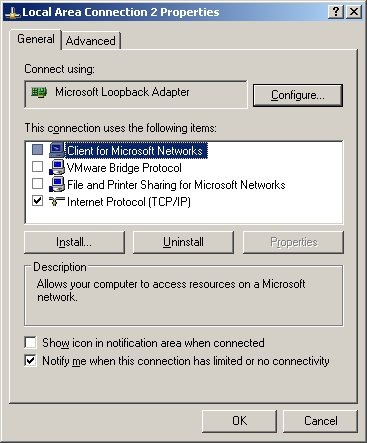
2.3. Add new Microsoft loopback interface and bind it to port 10.0.0.1, see [4] and [1] ([4] has some screenshots from Vista; XP installation is similar).
2.4. It may or may not be necessary, but I also (a) disabled all "items" for new 10.0.0.1 loopback connection (except TCP/IP, see first screenshot above) ; (b) enabled LMHOSTS lookup; (c) disabled NetBIOS over TCP/IP (see second screenshot) ; (d) disabled "File and 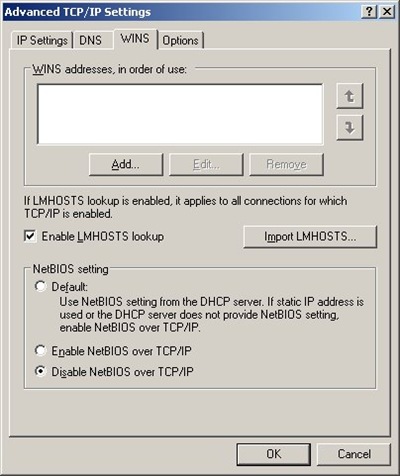 Printer Sharing for Microsoft Networks" for ALL connections;
2.5. Reboot and you are all set!
3. Setup port forwarding
This can be done in one of the two ways.
You can use of the many existing utilities for port forwarding. (It is more correct in fact to speak of reversed port forwarding, but people usually call it port forwarding all the same). In this case you need a (non-blocked) port to forward to, and your Samba server should be told to listen on this port.
Alternatively, you can use ssh port tunneling capability and tunnel port 139 through ssh. This requires more complicated setup and is more difficult to automate, but does not require any additional port to be used and has an additional benefit of securing your Samba traffic via ssh.
3.1. Using ssh tunneling.
3.1.1. With Cygwin (or similar CLI) ssh:
ssh -L 10.0.0.1:139:localhost:139 SERVER
3.1.2. Using PuTTY
(see screenshot in [4]). There are various ways to automate this using pageant, but I won't get into this here.
3.2. Using port forwarding.
3.2.1. Add another option to smb.conf :
smb ports = 445 139 8445 8139
3.2.2. Configure AUTAPF (shareware) or PassPort (Open Source) to forward port 139 on local adapter 10.0.0.1 to port 8139 on SERVER.
AUTAPF is more convenient as it immediately tells you if it can't bind a port thus it is better for testing; once you are comfortable with the setup, you can switch to free PassPort.
4. Using SMB shares
4.1. Under Windows
net use [<drive letter>:] \\10.0.0.1\homes /user:user /persistent:no
(Unless user if Windows user name and password matches, you'll be asked to enter server password at this point)
4.2. Under Linux
Make sure you have "smbfs" installed ("apt-get install smbfs") and issue this command as super-user:
mount -t smbfs -o username=user%<user password>,uid=<local username>,port=8139 //SERVER/homes <local mount point>
(You can use option -credential in place of plain text user name/password, see "man smbmount" and this page)
4.3. Using smbclient, any platform
For any platform which has utility "smbclient" or equivalent, and provided that you've configured SMB server to listen to port 8138, you can use this
smbclient //SERVER/homes -U user -p 8139
to access your files.
You can get MinGW-based smbclient.exe for Windows from here (it works fine except that you have to specify password in the command line); alternatively, you can build your own Cygwin-based version using one of the patched published here (you'll need to disable first test in Samba source file source/tests/summary.c)
References:
[1] Sharing (tunneling) Samba/CIFS/SMB file systems over SSH
[2] How to tunnel Samba via ssh from Windows XP without having to disable local NetBIOS
[3] Programs that connect to IP addresses that are in the loopback address range may not work as you expect in Windows XP Service Pack 2
[4] Vista or XP Accessing Samba shares securely over SSH
[5] Disabling Port 445 (SMB) Entirely
[6] After you disable the "Client for Microsoft Networks" option for a dial-up connection, the dial-up connection is still active on a Windows XP-based computer
[7] "Network Location Cannot be Reached" when accessing shares
[8] SMBCLIENT CONNECTION ERROR
Labels: debian, linux, Samba, server, SMB, windows

