Thursday, February 17, 2011
MPM
In my mod-python/apache based server implementation at some point I generate certain amount of data (from MySQL database) used in processing user input. This generation takes a while (~10 secs on my development server, ~30 secs on production VPS-based server) and is virtually unchanged from one invocation to the next. Why can't I save it in a disk cache and use it instead? OK, I tried just that.
You can imagine my surprise when I realized that reading from cache took exactly same time as original data generation! How is it even possible?
It turned out that the reason for this phenomenon was that my data consisted mostly of complied Python RE's (regular expressions). However, Python's underlying serialization engine ("pickle") cannot save compiled RE's; when you try to, on the pickle.load() call these RE's will be automatically (re-)compiled. This is what I experienced: most of the time which I initially attributed to DB access and processing results was in fact spent compiling RE's. When I switched to file cache, I gained nothing: same RE's were recompiled again on cache load.
Why such limitation? No one is really sure, however, this is exactly how things are at the moment:
Q: Is it possible to store these regular expressions in a cache on disk in a pre-compiled manner to avoid having to execute the regex compilations on each import?
A: Not easily. You'd have to write a custom serializer that hooks into the C sre implementation of the Python regex engine. Any performance benefits would be vastly outweighed by the time and effort required.
So what should or could I do to optimize my server? It is really annoying to have to wait half a minute every time for a server to generate the same data over and over again.
Looking for an answer to this question, I turned to mod-pyton documentation, section on session management. It appears that mod-python supports three kinds of section management engines: MemorySession, DbmSession, FileSession; naturally, MemorySession implements persistent storage in memory, whereas DbmSession and FileSession are essentially different ways to provide disk-based caching.
Now, there is little doubt that said caching will use internally Python's standard pickle engine, which will take me back exactly to square one.
Can I use MemorySession? mod-python "Session" implementation can make a determination which session engine to use. Documentation has this to say regarding when MemorySession is chosen:
If session type option is not found, the function queries the MPM and based on that returns either a new instance of DbmSession or MemorySession. MemorySession will be used if the MPM is threaded and not forked (such is the case on Windows), or if it threaded, forked, but only one process is allowed (the worker MPM can be configured to run this way). In all other cases DbmSession is used.
What is it talking about, and what is "MPM"? It took me a while to figure that out. MPM in fact stands for Multi-Processing Module and it has to do with how apache distributes incoming requests. Borrowing an excellent explanation from here,
Apache can operate in a number of different modes dependent on the platform being used and the way in which it is configured. This ranges from multiple processes being used with only one request being handled at a time within each process, to one or more processes being used with concurrent requests being handled in distinct threads executing within the same process or distinct processes.
The UNIX "prefork" Mode
This mode is the most commonly used. It was the only mode of operation available in Apache 1.3 and is still the default mode on UNIX systems in Apache 2.0 and 2.2. In this setup, the main Apache process will at startup create multiple child processes. When a request is received by the parent process, it will be handed off to one of the child processes to be handled.
The UNIX "worker" Mode
The "worker" mode is similar to "prefork" mode except that within each child process there will exist a number of worker threads. Instead of a request being handed off to the next available child process with the handling of the request being the only thing the child process is doing, the request will be handed off to a specific worker thread within a child process with other worker threads in the same child process potentially handling other requests at the same time.
You can find out which mode is used by these function calls (from mod-python request handler)
threaded = apache.mpm_query(apache.AP_MPMQ_IS_THREADED)
forked = apache.mpm_query(apache.AP_MPMQ_IS_FORKED)
The last question is, how to switch from one mode to another? In debian, simply install one of apache2-mpm-XXX packages:
debian-linux% apt-cache search ^apache2-mpm
apache2-mpm-itk - multiuser MPM for Apache 2.2
apache2-mpm-event - Apache HTTP Server - event driven model
apache2-mpm-prefork - Apache HTTP Server - traditional non-threaded model
apache2-mpm-worker - Apache HTTP Server - high speed threaded model
I am not sure what apache2-mpm-event is, but apache2-mpm-prefork and apache2-mpm-worker, when installed, will automatically uninstall (!) the other one and automatically make changes to /etc/apache2/apache2.conf to turn on respective mode, like that:
# worker MPM
# StartServers: initial number of server processes to start
# MaxClients: maximum number of simultaneous client connections
# MinSpareThreads: minimum number of worker threads which are kept spare
# MaxSpareThreads: maximum number of worker threads which are kept spare
# ThreadsPerChild: constant number of worker threads in each server process
# MaxRequestsPerChild: maximum number of requests a server process serves
<IfModule mpm_worker_module>
    StartServers          2
    MaxClients          150
    MinSpareThreads      25
    MaxSpareThreads      75
    ThreadsPerChild      25
    MaxRequestsPerChild   0
</IfModule>
All that remains is to add somewhere to apache configuration
PythonOption mod_python.session.session_type MemorySession
... and verify it in Python code
if req.get_options().get('mod_python.session.session_type') == MemorySession and \
   apache.mpm_query(apache.AP_MPMQ_IS_THREADED) != 0

   # using persistent storage
   session = Session.Session(req)
   ......................
And that's it - the processing which used to take half a minute now done in a fraction of a second!
Labels: apache, debian, development, linux, mod-python, python, server

Sunday, April 26, 2009
WebDAV, problems all around
It seems almost incomprehensible how many problems emerge with simple WebDAV file hosting. While apache DAV server, and clients built-in into both Windows Shell and GNOME have been available fr many years, I still can't make it to work properly.
Here is a brief list of problems:
Apache 2 Server. Its problem is that it is bit difficult to make server work with both "resular" and SSL modes. This typically emerges as failure to "copy", "move" or "rename" file in non-SSL mode, while everything else seems to work.
Good explanation is available here:
The main issue was that the production system runs on https and there was a reverse proxy setup for this system. So, all the "https" requests were converted to "http" at this proxy level and forwarded to the main system. This was the main culprit.
Here is an example of HTTP request for the MOVE resource request for a WebDAV resource. For brevity I removed all unnecessary details.
MOVE contentLocation //request line, some https location, URI of webDAV resource
Destination:destinationLocation // this is the HTTP request header, should be absolute URI according to specifications.Overwrite: "F" // this is also a HTTP request header
So, when the reverse proxy sees the request line, it knows that it has to convert this to HTTP request but the header Destination also contains an HTTPS request which would be ignored by the proxy. So, when the request reached the server, we are moving the resource from an URI which begins with a http to a URI which begins with an https. Server treats this request as a request to move a WebDAV resource from one server location to another server location.(Refer RFC: http://greenbytes.de/tech/webdav/rfc2518.html#METHOD_MOVE). This was the source of the main problem.
Linux/GNOME GVFS driver: Seems to work most of the time,but
- Fails to handle paths with user name "davs://username@server.com/path". "Top listing" is shown correctly, but an attempt to change directory fails. Reason unknown;
- When using drag-and-drop, or "cut/paste" interface, it attempts to "copy" file and then "delete" the original. I could not find any way to invoke "MOVE" command.
Windows (old driver). This is "old" Windows-2000 implementation, which identifies itself as "Microsoft Data Access Internet Publishing Provider DAV". This seems almost the most reliable implementation, and it worked for me for a while, but now it shows directory "Temp" as "temp" (all other directories similarly named are OK), and obviously fails to chdir to it. Reason unknown.
Windows (new driver, XP and newer). Identifies itself as "Microsoft-WebDAV-MiniRedir/5.2.3790". Apparently only intended to work with Microsoft IIS, not compatible with Apache. This pages gives a consice overview:
For implementation of WebDAV on Windows XP and later , MSFT made it's own interpretation of the standard to work best with the Windows IIS servers. The problem due to this is three fold:
- Windows XP authenticates users using the format "domain\username" by the mechanism of "Microsoft-WebDAV-MiniRedir/5.1.2600". Whereas Windows 98SE/2000 authenticates users as "username" using the mechanism of "Microsoft Data Access Internet Publishing Provider DAV 1.1".
- The problem lies with the implementation of "Microsoft-WebDAV-MiniRedir/5.1.2600". If authentication is sent as "domain\username" then it would be received as "usernamedomain" or "usernamehostname" by the Web server and not as "username".
- Also as per "Microsoft Knowledge Base, Article ID: 841215" Windows XP disables "Basic Auth" in its "Microsoft-WebDAV-MiniRedir/5.1.2600" mechanism by default for security reasons. But WebDAV expects "Basic Auth".
There are hundreds pages how to trick it to invoke "old" implementation, including some on the same page mentioned above; there is also a separate discussion regarding Windows Vista, where "old" implementation has to be separately installed. Windows 7 status is unknown.
Platform-independent clients.
- SkunkDAV Java-based client is simple and reliable, but unfortunately I could not make it support SSL-based access;
- Cadaver is CLI-based tool. It seems to work fine.
Update (12-May-09). "Official" subversion book has a list of DAV clients. Among some known clients, some of them mentioned above, there is another Jaba-based client "DAV Explorer", it has been last updated in 2005 and looks a bit better than SkunkDAV, though I can't say there is a big difference.
Also, its help file says that in order to enable SSL in Java one has to run Java with -Dssl=true, and only from version 1.4 on; for earlier versions, one has to download special Java Secure Socket Extensions. It is likely with if run with these options, SkunkDAV will work ok with SSL DAV.
Labels: GNOME, linux, server, Ubuntu, web-services, windows
Monday, September 29, 2008
Samba installation under Ubuntu
In one of the recent posts, I listed some basic steps to configure Samba server under Debian 4; when I tried recently to similarly activate Samba under Ubuntu 8.04, it appeared that due to consistent improvement of Linux distributions, some steps needed to be corrected in some minor ways. Here I list the most important changes for future reference:
- Ubuntu is distributed by default with xinit as opposed to init (xinit has a "compatibility mode" which makes it to read and interpret "init" configuration file, but by default it is not created or updated since "init" is not installed). To enable Samba server under xinit, create file "samba" in directory "/etc/xinetd.d" with this (or similar) content (taking a hint from here):
service netbios-ssn
{
# "port" by default is taken from /etc/services
# port  = 139
 socket_type = stream
 wait  = no
 only_from = 192.168.0.0
 user  = root
 server  = /usr/sbin/smbd
 log_on_failure += HOST
 disable  = no
 mdns  = yes
 instances = 2
}
- There is now option "passdb backend = tdbsam", which is very similar to using "smb passwd file", except that there is no need to use specific file; other than that, you can (and should) use smbpasswd to setup encrypted passwords;
- "Home directory" special share "[homes]" is commented out by default. Uncomment it and make changes as described.
Labels: linux, Samba, server, SMB, Ubuntu
Sunday, July 27, 2008
Accessing SMB shares under firewall
There are, generally speaking, five "standard" ways to make files on (Linux) server available to clients:
- Using FTP server;
- If sshd is running, files could be accessed with SFTP;
- If Web server is running, WebDAV could be used;
- Using NFS (see earlier port);
- Using SMB-shares.
In principle, last choice - using Samba shares - is supposed to be most "native" with respect to Windows clients; let's consider how difficult it is to use it practically...
For the following, we assume that SMB server is running on "SERVER" and we'll be using it to access file of local regular user "user".
1. Install and configure samba
1.1. Install
# apt-get install samba smbclient
1.2. Modify config file.
Here we zero in on "minimalistic" approach, which only requires minimal changes to default config file (as distributed with Debian, anyway). It has one built-in share "homes" which provides access to each user's home directory (it is enabled by default, but in read-only mode)
1.2.1. Backup default config file:
cp /etc/samba/smb.conf /etc/samba/smb.conf.original
1.2.2. Modify global settings:
workgroup = <Enter some name>
interfaces = <enter some interfaces from /sbin/ifconfig, e.g. lo venet0:0>
printcap name = /dev/null (shut down all complaints in logs about printers)
encrypt passwords = yes (or else you won't connect from Windows NT and up)
security = user (this should be the default anyway)
smb passwd file = /etc/samba/smbpasswd (see below why/when this is necessary)
1.2.3. Modify setting for share.
If you are satisfied with read-only access to user's directory, there is nothing more to change. If you want read-write access, there are some settings to adjust:
writable = yes
create mask = 0644
directory mask = 0755
Note on "encrypt password": if encrypt password = false, you don't need "smb passwd file", system password file will be used. For some reason it did NOT work for me if "encrypt password = true". As suggested in [8], I did this:
cat /etc/passwd | mksmbpasswd > /etc/samba/smbpasswd
smbpasswd user (for each use who needs his home dir access via SMB)
1.2.4. Restart server:
/etc/init.d/samba restart
1.2.5. Test installation (on the server as user)
smbclient //localhost/homes
If you can, test from another location which does not block outgoing ports 139, 445
smbclient //SERVER/homes -U user
2. Setup Windows computer
In principle, the following command
net use [<drive letter>:] \\SERVER\homes /user:user /persistent:no
should be able to mount corresponding share. However, for this to work it is necessary that client computer had direct access to server using ports 139 and/or 445. If server is to be used in local subnet, this is undoubtedly so and no more setup is required. However, if you are accessing server from the Internet, and your ISP is blocking these ports (like RCN), read on.
The idea is to try to mount SMB shares on SERVER as if they were available on localhost; intercept requests made on (local) ports 139 and 445 and somehow forward them to SERVER.
This however appears to be more difficult than it sounds. The problem is, Windows by default binds all adapters on port 445 :
> netstat -ano | grep 445
TCP 0.0.0.0:445 0.0.0.0:0 LISTENING 4
and the only way to make this port available for binding is to disable NetBios completely, which is rather pointless, since then you won't be able to amount anything at all (if, however, you want to play with this, refer to [5] and [6]).
Fortunately, however, usually Windows, after failing to mount using port 445, falls back to port 139, which apparently you can bind, albeit not on "standard" loopback adapter 127.0.0.1; (well, you can bind to it, but it won't work for whatever reason), thus necessity to create new loopback connection. This "fallback" logic is in no way guaranteed and moreover has reportedly been broken by a recent Vista patch; but at least on XP this seems to work, as long as you implement 2.1 and 2.2 below.
2.1. If you are using Windows XP, install this Windows patch [3].
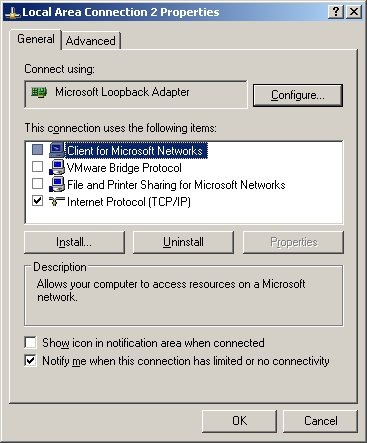 2.2. For your existing Internet connection, enable option "EnableBIOS over TCP/IP" (in fact, it may be sufficient to do so for any Internet connection. Quoting from [1]: "It also appears that if there are no valid interfaces with NetBIOS over tcp enabled, then windows will not attempt to use port 139")
2.3. Add new Microsoft loopback interface and bind it to port 10.0.0.1, see [4] and [1] ([4] has some screenshots from Vista; XP installation is similar).
2.4. It may or may not be necessary, but I also (a) disabled all "items" for new 10.0.0.1 loopback connection (except TCP/IP, see first screenshot above) ; (b) enabled LMHOSTS lookup; (c) disabled NetBIOS over TCP/IP (see second screenshot) ; (d) disabled "File and 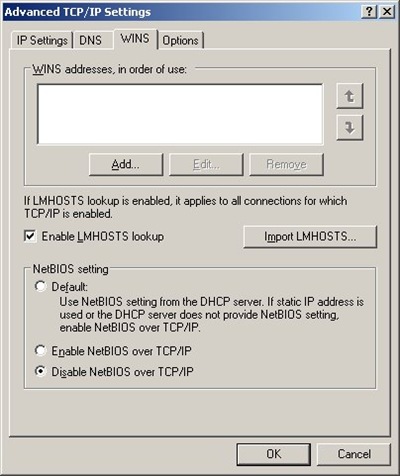 Printer Sharing for Microsoft Networks" for ALL connections;
2.5. Reboot and you are all set!
3. Setup port forwarding
This can be done in one of the two ways.
You can use of the many existing utilities for port forwarding. (It is more correct in fact to speak of reversed port forwarding, but people usually call it port forwarding all the same). In this case you need a (non-blocked) port to forward to, and your Samba server should be told to listen on this port.
Alternatively, you can use ssh port tunneling capability and tunnel port 139 through ssh. This requires more complicated setup and is more difficult to automate, but does not require any additional port to be used and has an additional benefit of securing your Samba traffic via ssh.
3.1. Using ssh tunneling.
3.1.1. With Cygwin (or similar CLI) ssh:
ssh -L 10.0.0.1:139:localhost:139 SERVER
3.1.2. Using PuTTY
(see screenshot in [4]). There are various ways to automate this using pageant, but I won't get into this here.
3.2. Using port forwarding.
3.2.1. Add another option to smb.conf :
smb ports = 445 139 8445 8139
3.2.2. Configure AUTAPF (shareware) or PassPort (Open Source) to forward port 139 on local adapter 10.0.0.1 to port 8139 on SERVER.
AUTAPF is more convenient as it immediately tells you if it can't bind a port thus it is better for testing; once you are comfortable with the setup, you can switch to free PassPort.
4. Using SMB shares
4.1. Under Windows
net use [<drive letter>:] \\10.0.0.1\homes /user:user /persistent:no
(Unless user if Windows user name and password matches, you'll be asked to enter server password at this point)
4.2. Under Linux
Make sure you have "smbfs" installed ("apt-get install smbfs") and issue this command as super-user:
mount -t smbfs -o username=user%<user password>,uid=<local username>,port=8139 //SERVER/homes <local mount point>
(You can use option -credential in place of plain text user name/password, see "man smbmount" and this page)
4.3. Using smbclient, any platform
For any platform which has utility "smbclient" or equivalent, and provided that you've configured SMB server to listen to port 8138, you can use this
smbclient //SERVER/homes -U user -p 8139
to access your files.
You can get MinGW-based smbclient.exe for Windows from here (it works fine except that you have to specify password in the command line); alternatively, you can build your own Cygwin-based version using one of the patched published here (you'll need to disable first test in Samba source file source/tests/summary.c)
References:
[1] Sharing (tunneling) Samba/CIFS/SMB file systems over SSH
[2] How to tunnel Samba via ssh from Windows XP without having to disable local NetBIOS
[3] Programs that connect to IP addresses that are in the loopback address range may not work as you expect in Windows XP Service Pack 2
[4] Vista or XP Accessing Samba shares securely over SSH
[5] Disabling Port 445 (SMB) Entirely
[6] After you disable the "Client for Microsoft Networks" option for a dial-up connection, the dial-up connection is still active on a Windows XP-based computer
[7] "Network Location Cannot be Reached" when accessing shares
[8] SMBCLIENT CONNECTION ERROR
Labels: debian, linux, Samba, server, SMB, windows
Thursday, May 15, 2008
Using NFS mounts under Windows
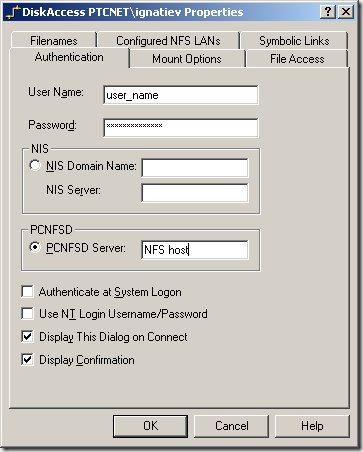 When one needs to access files on remote Linux workstation from a windows computer, there are two obvious ways in which this can be done: run Samba server on Linux or NFS client on Windows. While former approach is I guess by far more popular, here I will consider later one: sharing files via NFS client/server.
First, we need to install a NFS client. I don't know of any free one, and perhaps the best known and reliable commercial solution is DiskAccess from Javvin Technologies. Installation is straightforward.
Problems begin though when it turns out that in order to access NFS file system with DiskAccess one needs certain authentication configuration setup. This could be and is done in a corporate environments with NIS (formerly Yellow Page server).
However, when we only have two machines that need to talk to each other, this might be an overkill and a disaster to setup. This is perhaps why there is another option in aforementioned dialog, "PCNFSD Server". What is that?
As the name suggests, this is perhaps mini-daemon intended to facilitate communication between "PC" and NFS server. This sounds good, except that this utility is barely known even to Google, isn't in any Linux distribution, and as a matter of a fact "canonical" version from SUN is perhaps older than Linux itself.
Fortunately, one kind soul invested necessary effort to port this to Linux
- Get it here: http://ftp.linux.org.uk/pub/linux/Networking/attic/Other/pcnfsd/linux_pcnfsd2.tgz, untar and unzip into a new directory;
- Edit file common.h to uncomment "#define SHADOW_SUPPORT"
- Make other changes necessary to build successfully. On RHE4, I had to define "LIBS= -lcrypt" in Makefile.linux;
- make -f Makefile.linux
- Run linux/rpc.pcnfsd as root. No configuration is required.
Fast, simple, and keeps DiskAccess happy.
Of course, what remains to be done is to "export" a directory and "mount" it under Windows.
To export directory /ext/user on RHE4:
- Add line like this:
/ext/user 192.168.2.1/255.255.252.0(sync,rw)
to file /etc/exports (provided that this IP subnet is an accurate description of your local net, this will export directory in read-write mode to the local file system only. You can substitute '*' for IP range if security is not on the top of your priorities list); - Reset list of exported directories with /usr/sbin/exportfs -r or /usr/sbin/exportfs -a ;
- While this is supposed to be enough, you may need to restart NFS server with command like this: /etc/rc.d/init.d/nfs restart
To mount exported NFS directory under Windows,
- Once after DiskAccess installation, go to control panel, select DiskAccess item and enter your credentials, and set other options as you see fit;
- You can now mount with regular Windows UI or with command like this:
net use R: \\nfs_host\ext\user
You shouldn't be forced to use drive letter, but for some reason it didn't work for me without that.
Labels: linux, NFS, server, windows
Wednesday, May 14, 2008
Using rsync for backup, part I
Huge hard drives are cheap these days, and almost always they come bundled with some fancy back-up solution; not at all surprising, given that it is precisely what majority of customers are going to use new disk space for.
Interestingly enough, there aren't that many good backup utilities for Linux, or open source tools of this sort in general. Most likely this is because people still use "rsync" for Linux, Unix, and multi-platform backups.
"rsync" is very far from being "perfect" backup tool (more on that below), but at least is is old, stable, reliable, simple to use and available for all kinds of platforms, including Cygwin and native Windows port.
Therefore, we will begin by reviewing the most basic ways to use rsync for backups.
Note that it seems like these blatant deficiencies caused rsync maintainers in the last few years to introduce new options which are supposed to help properly implement backup operation. At this moment though, I don't want to get into this; the following tips are based on rsync version 2.6.3 (protocol version 28, released in 2004) or higher.
First, we need to start and configure rsync server on a dedicated server. Here is the plan.
Server configuration (everything is executed as "root"):
- Decide whether you want to run rsync daemon through inet (most of servers are used this way) or as a stand-alone server (like apache for example). The advantages of either approach are outlines in this passage:
If you start off the rsync daemon through your inet daemon, then you incur much more overhead with each rsync call. You basically restart the rsync daemon for every connection your server machine gets! It's the same reasoning as starting Apache in standalone mode rather than through the inet daemon. It's quicker and more efficient to start rsync in standalone mode if you anticipate a lot of rsync traffic. Otherwise, for the occasional transfer follow the procedure to fire off rsync via the inet daemon. This way the rsync daemon, as small as it is, doesn't sit in memory if you only use it once a day or whatever. Your call.
- Let's assume for the following that you like myself are going to run rsync via inet. All modern Linux distributions have necessary hookup already done for you, and all you need to do is to open appropriate UI and enable rsync server. However, just in case, here is command-line configuration instructions from rsyncd.conf manual page:
When run via inetd you should add a line like this to /etc/services:
rsync 873/tcp
and a single line something like this to /etc/inetd.conf:
rsync stream tcp nowait root /usr/bin/rsync rsyncd --daemon - Create config file /etc/rsyncd.conf like that (it is assumed that "/ext/BACKUP" is the root of your backup area):
log file = /ext/BACKUP/log/rsyncd.log
pid file = /var/run/rsyncd.pid
lock file = /var/run/rsync.lock
secrets file = /etc/rsyncd.scrt
auth users = rsync
read only = no
transfer logging = yes
list = yes
[MyModule]
   path = /ext/BACKUP/mymoduledir
   comment = Description of what this backup location is for
Create all necessary sub-directories of /ext/BACKUP (including "log") and change ownership of all "modules" directories like /ext/BACKUP/mymoduledir to 'nobody':#chown nobody /ext/BACKUP/mymoduledir
- Create password file /etc/rsyncd.scrt with one line only which looks like that:
rsync:password
('rsync' can be any 'user' name, see 'auth user' configuration option above).
Change access mode of this file to 0600 :
#chmod 0600 /etc/rsyncd.scrt - If external access (from outside of your local network) is required, you can change default port 873 to something else and/or open this port in your firewall or router.
Client configuration (executed by any user who has read access to files being backed up)
- Create file /etc/rsync.p (if acting as root) or ~/.rsync.p (if regular user) with just one line which is password from server configuration section. Change its mode to 0600.
- You can now start backup job by executing this command:
rsync -az path_1 ... path_N --password-file /etc/rsync.p rsync@server::MyModule
Where path_1 ... path_N are all directories you want to copy to MyModule backup location.
Note however that (a) rsync attaches a special meaning to paths which end with a slash, like '/home/user/', basically interpreting them as '/home/user/*'; this is most useful when backing up just one path, and (b) for every path in a list, special sub-directory will be created under /ext/BACKUP/mymoduledir, which corresponds to the last component of the path (after special treatment of end-slashes is taken into account, of course). It is your responsibility to make sure these do not overlap. - If you want to automate regular backups, create a cron job like that:
30 2 * * * /usr/bin/rsync options as above - As another example, under Cygwin you use command like this to back up all files in all drives while excluding some Windows directories:
rsync -az /cygdrive/c /cygdrive/d \
   --exclude 'System Volume Information/' --exclude /c/WINNT/ \
   --delete-excluded rsync@rsync.myhomeserver.com::laptop
Here is why this approach, while useful, need certain rework to provide true backup solution:
- There is no way to save to the server file owner information. All files are saved as created by "nobody" (you can change this default, but you cannot force server to save original file ownership data);
- If directory (in the original location) has restricted access, server might not be able to back up files within this directory (you can force server to relax permissions, but then you would have lost original permissions info);
- While detailed log file can be saved (to this end we suggested option 'transfer logging' above), there are no (good) tools to analyze it and report backup failures, especially for backups which are run in the background by cron.
service rsync
{
        disable         = no
        socket_type     = stream
        wait            = no
        user            = root
        server          = /usr/bin/rsync
        server_args     = --daemon
        log_on_failure  += HOST
        instances       = 2
}
(from here) and do "/etc/init.d/xinetd restart".Tuesday, May 08, 2007
Using getmail/procmail to peek into IMAP server
I am using IMAP (in fact, Microsoft Exchange) server to read my mail. Now, I want some automated tool to take a sneak peek at all new e-mails which come my way and if these e-mails deemed "important", let's say, forward them to another e-mail account.
This could be easily done on a UNIX platform using getmail/procmail combination, but there is a fair amount of configuration required to achieve this goal, including patching getmail source in the process, so let me for the future reference underline the steps required and give some examples of configuration files I used.
1. Install procmail.,/p>
Currently, the latest version is 3.22 and source code can be copied directly from here (September 2001)
To install, you can do
make
make install
but before you do, make sure that your /bin/sh is in fact bash (install it if necessary) and not regular Unix sh; if not, replace first line of file initmake with #! /bin/bash.
After installation, make sure "man procmailrc" works for you (you will need it!) and if not, adjust your $MANPATH and/or copy all *.[15] files from "new" to an appropriate location.
2. Install getmail.
Currently, the latest version 4.7.4 is available here (April 2007). Note that you must have Python installed as getmail is Python-based.
Before you build/install getmail, make one change to file getmailcore/_retrieverbases.py : replace line
return self._getmsgpartbyid(msgid, '(RFC822)')with line
return self._getmsgpartbyid(msgid, '(BODY.PEEK[])')as suggested in this e-mail thread, in order to prevent your new messages from being marked as "read' ('seen' in IMAP language).
sub deny_seeing {
  my($self, @msgs) = @_;
  if ( ref($msgs[0]) =~ /ARRAY/ ) { @msgs = @{$msgs[0]} };
  $self->unset_flag('\\Seen', @msgs);
}
sub unset_flag {
  my($self, $flag, @msgs) = @_;
  if ( ref($msgs[0]) =~ /ARRAY/ ) { @msgs = @{$msgs[0]} };
  $flag =~ /^\\/ or $flag = "\\" . $flag
     if $flag =~ /^(Answered|Flagged|Deleted|Seen|Draft)$/i;
  $self->store( join(",",@msgs), "-FLAGS.SILENT (" . $flag . ")" );
}
to understand that in Python this probably could have been done by calling doing something like that (untested):
imap.store (message_set, "-FLAGS.SILENT (\\Seen)" )
python setup.py build
python setup.py install
3. Make new directory ~/.getmail and create there file getmailrc like that:
[retriever]
type = SimpleIMAPRetriever
server =  imap.myservername.com
username = myusername
port = 143
password = mypassword
mailboxes = ("Inbox",)
[destination]
type = MDA_external
path = /usr/bin/procmail
arguments = ('~/.getmail/procmailrc',)
(fill out proper IMAP server credentials). If you need help with getmail configuration file, see here.
4. In the same directory ~/.getmail, create new file procmailrc like that :
PMDIR=$HOME/.getmail
# Put ## before LOGFILE if you want no logging (not recommended)
LOGFILE=$PMDIR/log
# Set to yes when debugging
VERBOSE=yes
# Remove ## when debugging; set to no if you want minimal logging
LOGABSTRACT=all

:0: procmail.lock
* ^From:.+(Petya|Vasya|Kolyan|president@kremlin.ru)
!myemailaddress@gmail.com

:0
/dev/null
(Turn off debugging as per comments in the above file when satisfied). If you need help with procmail configuration files, use "man procmailrc".
5. Test your new setup as needed by using command:
getmail --dont-delete --newand then satisfied, add something like this in your crontable:
1,6,11,16,21,26,31,36,41,46,51,56 * * * * /usr/local/bin/getmail -q -l -n
You are all set!
Labels: getmail, linux, mail, procmail, server

